How-to
How to Add a Person to a Photo with AI
Someone was behind the camera, could not travel, or was simply not there. You can still have a picture with them in it.
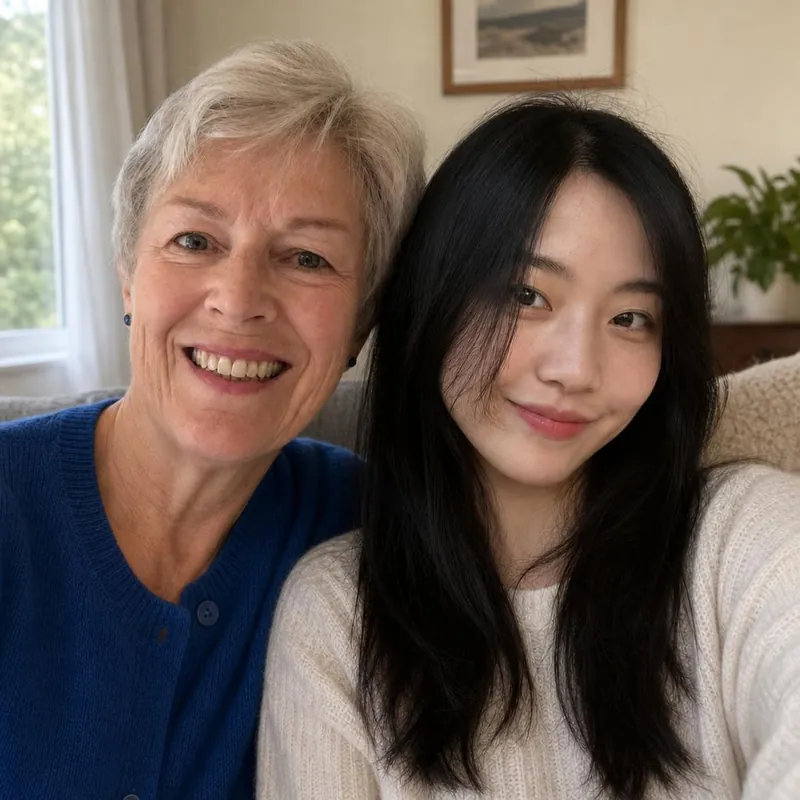
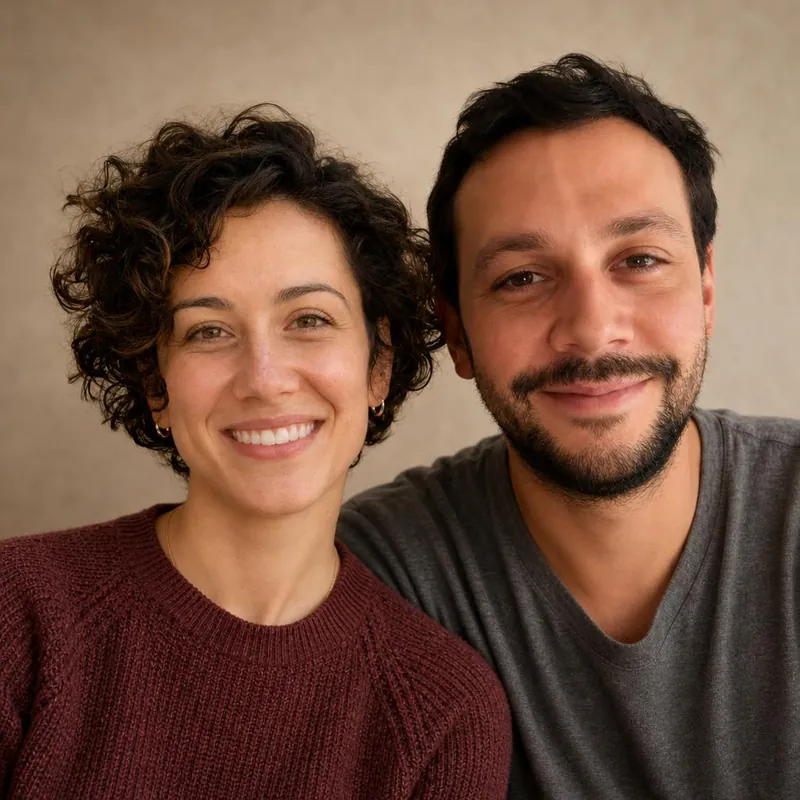
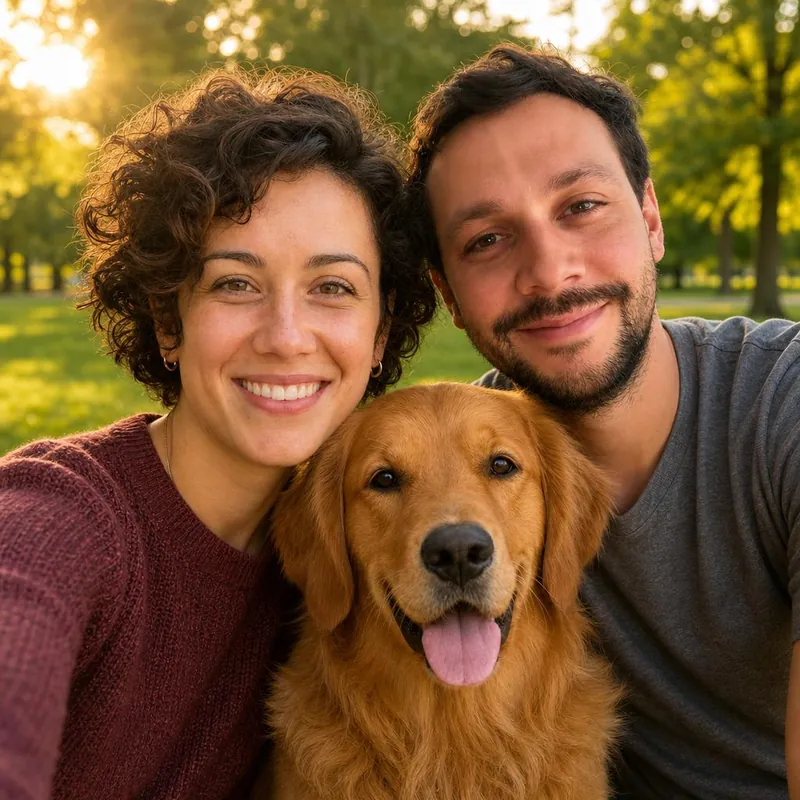
Two ways to add a person
Editing tools paste a person into an existing photo. SameFrame AI works differently: it creates a new picture from one photo of each person, so the light and the background match from the start.
What you need
One clear photo of each person, alone and looking toward the camera. Crop group photos so each photo shows one person.
Step 1: open the two people studio
Upload the first person's photo and then the second person's photo. Files can be JPG, PNG or WebP up to 10 MB.
Step 2: add a third if you like
Open Add a third person or pet (optional) to include one more person or a pet. Results are most reliable with two subjects.
Step 3: choose a setting and create
Pick a setting from the list, confirm that everyone shown has agreed, and select Create free preview. There is no prompt to write.
What you will not get
The picture is new. It does not keep the exact background, pose or clothing position of an existing photo. Check both faces in the free preview. The original costs US$1.
Bring them into the same frame.
Start with a free watermarked preview. No account needed.
Choose your studio ↗